
W
hat is Encryption Key in BlackBerry.Encryption key in BlackBerry is need when you using BlackBerry Enterprise Server to have first connection between BES and handheld for data transferring. But if we need new encryption key it can be regenerated.
The key can be generated with the BlackBerry handheld, desktop manager and BlackBerry Enterprise Server. The function is for security key transactional data between BES and Device Handheld.
The key is important to keep connection data between BES and Device Handheld, the key will be save on database BES, if name of database is change then need to regenerated key.
M. Arief Gustianto
Read More
Showing posts with label Tips BlackBerry. Show all posts
Showing posts with label Tips BlackBerry. Show all posts
Saturday, 19 December 2009


Saturday, 12 December 2009
How to change the signature on BlackBerry ( BIS account )
H
ow to change the signature on BlackBerry ( BIS user ). Like the title this is for BIS account which your email is register on provider webclient.
the steps :
1. Login to your www.provider.blackberry.com
2. Click edit which email account you want to edit the signature
3. On signature column you can fill with blank or else you want
4. Save.
M. Arief Gustianto
Read More
Thursday, 23 July 2009
How to Synchronize Address Book from Other Device to BlackBerry Device
H
ow to Synchronize Address Book from Other Device to BlackBerry Device. This is one of frequently ask question about using BlackBerry device. I will try to step by step to do it, example if we want to move from Nokia device to BlackBerry device.
Pre system need :
1. PC suite for Nokia.
2. Desktop Manager for BlackBerry.
3. Mail client like outlook, note etc for bridge between two devices.
The Steps :
A.
1. Run PC Suite.
2. Plug cable between Nokia and PC.
3. Click Synchronize.

4. Choose setting or option on bottom side > next.
5. Choose the mail client do you have > next.

6. Tick Contact > next.
7. Choose the profile. Just the default choosing > next.
8. Finish.
9. Run mail client.
10. Do the Synchronize.
Now you contact on Nokia have on Address Book mail client. For this case, I am using Microsoft outlook.

B.
1. Run Desktop Manager.
2. Plug cable between Device BlackBerry and PC.
3. Choose Synchronize.

4. Choose tab Configuration > Configure Synchronize.
5. Tick Address Book > Ok.
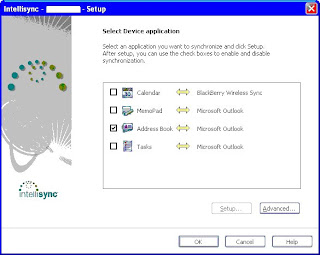
6. Synchronize Now.
M. Arief Gustianto
Read More
ow to Synchronize Address Book from Other Device to BlackBerry Device. This is one of frequently ask question about using BlackBerry device. I will try to step by step to do it, example if we want to move from Nokia device to BlackBerry device.
Pre system need :
1. PC suite for Nokia.
2. Desktop Manager for BlackBerry.
3. Mail client like outlook, note etc for bridge between two devices.
The Steps :
A.
1. Run PC Suite.
2. Plug cable between Nokia and PC.
3. Click Synchronize.

4. Choose setting or option on bottom side > next.
5. Choose the mail client do you have > next.

6. Tick Contact > next.
7. Choose the profile. Just the default choosing > next.
8. Finish.
9. Run mail client.
10. Do the Synchronize.
Now you contact on Nokia have on Address Book mail client. For this case, I am using Microsoft outlook.

B.
1. Run Desktop Manager.
2. Plug cable between Device BlackBerry and PC.
3. Choose Synchronize.

4. Choose tab Configuration > Configure Synchronize.
5. Tick Address Book > Ok.

6. Synchronize Now.
M. Arief Gustianto
Read More
Sunday, 17 May 2009
Transfer file using Bluetooth between device
T
ransfer file using Bluetooth between device. Some of us have problem with BlackBerry device Bluetooth when transfer file. If the scenario is from BlackBerry to non BlackBerry there is no different way with others, but the different is when the receiving is BlackBerry device
The steps are :
1. Turn on Bluetooth on both devices.
2. Do pairing between devices.
3. Using passkey, example 123.
4. When Device A transfer file to Device B, on Device B go to media >
Click menu key > receiving Bluetooth.
M. Arief Gustianto
Read More
Thursday, 30 April 2009
How to change bar signal to numeric signal
H
ow to change signal bar to numeric. We can see on right top screen of device, there is signal with full bar is 5. In BlackBerry we can change to signal numeric, this numeric explain signal strength. This is the trick :
Click and Hold ALT and then type NMLL.
If below -85 dBm is mean that you have good signal
M. Arief Gustianto
Read More
Saturday, 25 April 2009
How to copy sim card phone to contact on device BlackBerry
H
ow to copy sim card phone to contact on device BlackBerry. There are several steps, as follow :
1. On menu, click contact icon.
2. Click menu. ( BlackBerry symbol ).
3. Choose SIM Phone Book
4. Click menu.
5. Choose All To Contacts.
M. Arief Gustianto
Read More
ow to copy sim card phone to contact on device BlackBerry. There are several steps, as follow :
1. On menu, click contact icon.
2. Click menu. ( BlackBerry symbol ).
3. Choose SIM Phone Book
4. Click menu.
5. Choose All To Contacts.
M. Arief Gustianto
Read More
Monday, 20 April 2009
How to installing applications on your BlackBerry using Desktop Manager
H
ow to installing applications on your BlackBerry using Desktop Manager, this is the step:
1. Open Desktop Manager.
2. Click Application Loader.
3. Select Add/remove Application > Start.
4. Click Browse to open file that you want install to BlackBerry.
5. Check mark the application you want onto BlackBerry > Next.
6. The BlackBerry will reboot.
Note: This is 4 files types you can install to your BlackBerry :
1. JAD files.
2. JAR files.
3. COD files.
4. ALX files.
M. Arief Gustianto
Read More
Wednesday, 15 April 2009
How do to free up memory on device
H
ow do to free up memory on device. If you feel that your device slowly because some memory unused and want to remove, this the way.
a. Delete Cache and Cookies in Browser
1. On menu, Click Browser application.
2. Click menu key
2. Select Options > Cache Operations
3. Select Clear History or Pushed Content or Cookie Cache.
b. Delete unused Languages
1. On menu, Click Options > Advanced Options > Applications
2. Choose the unused languages
3. Press the menu key and select Delete
4. Remove battery for 30 seconds
c. Remove call logs
1. On menu, Click the Messages application and press the menu key
2. Click View Folder,
3. Click Phone Call Logs
4. Scroll to the top date and highlight it
5. Press the menu key and select Delete Prior
M. Arief Gustianto
Read More
Saturday, 4 April 2009
Shortcut Key
S
hortcut Key. This the list of shortkey on keyboard device BlackBerry :
T = Task
A = Address Book
L = Calendar
C = Contact
M = Message
Y = Yahoo Messenger
N = BlackBerry Messager
G = Gtalk
U = Calculator
O = Option
P = Call Log
S = Search
D = Memo
F = Profile
H = Help
K = Keylock
V = Save Messages
B = Browser
If you have problem with activation shortkey, please read :
http://informasidanopini.blogspot.com/2009/02/enable-disable-short-key-from-menu.html
M. Arief Gustianto
Read More
Monday, 16 March 2009
How to upgrade software BlackBerry ?
H
ow to upgrade software BlackBerry ?, First you must to do is manual, just in case ou have problem when install or upgrade software, please check this :
http://informasidanopini.blogspot.com/2008/11/how-to-backup-data-and-restore-data.html
this link can you use for restore too.
2. Download the OS from www.blackberry.com.> choose the carrier of your device.
3. Install device to the desktop. Open > Run > do installation progress.

4. Open Desktop Manager.
5. Click Application Loader.
6. Update Application.
7. Click Advanced if you want to add or remove application you want.
8. Next > Progress > Finish

Note : All in progress, do not unplug the cable.
M. Arief Gustianto
Read More
Tuesday, 10 March 2009
Application on BlackBerry Device
A
pplication on BlackBerry Device, what kind of application using unlimited APN ? I will try separate 3 kind application on BlackBerry device :
1. RIM application : all of this using unlimited apn. Example : BlackBerry Messanger.
2. Second party application : Application have permission from RIM to use unlimited APN. Example : Yahoo messanger, google talk, etc.
3. Third party application : Application using apn provider.
Note :
1. Some application like opera, Gmail Application as i know this is third party application, but can use on unlimited apn.
2. Streaming web use apn provider.
M Arief Gustianto
Read More
Monday, 9 March 2009
How to select multiple email and then delete it
H
ow to select multiple email and then delete it. You want to delete not one by one, you can try few tips :
1. You can click the first email then hold down the shift button and scroll down with the Trackball, stop until email you want delete. Then press del or backspace.
2. If you want delete all email from one of your sender email, put the cursor to email sender you want delete then press option > search sender > with the way number 1 you can delete email or you can try to top date > menu > delete prior.
Have a nice try.
M. Arief Gustianto
Read More
Tuesday, 17 February 2009
Enable / disable short key from menu
E
nable / disable short key from menu. You have problem with short key, like if press ‘k’ that short key for lock the handset. This is the way :
1. On menu, click the Phone icon.
2. Click menu > Option.
3. Click General Options.
4. Change the Dial from home screen option to No or Yes.
5. Click the menu and select Save.
M. Arief Gustianto
Read More
Wednesday, 11 February 2009
What sizes MicroSD media card supported BlackBerry Device Software versions
W
hat sizes MicroSD media card supported BlackBerry Device Software versions, this is the table list :
BlackBerry Device Software version Media card size limit
BlackBerry Device Software 4.2.0 Up to 2 GB
BlackBerry Device Software 4.2.1 Up to 4 GB
BlackBerry Device Software 4.2.2 Up to 4 GB
BlackBerry Device Software 4.3.0 Up to 8 GB
BlackBerry Device Software 4.5.0 Up to 8 GB
BlackBerry Device Software 4.5.0.81 and later Up to 16 GB
BlackBerry Device Software 4.6.0 and later Up to 32 GB
M. Arief Gustianto
Read More
Sunday, 8 February 2009
How do edit tones of BlackBerry Handheld
H
ow do edit tones of BlackBerry Handheld, Do you want to change the tone when you get an incoming call and message ( SMS and else ) ?
1. On menu select the Profiles icon.
2. Then click Advanced on below option.
3. Select the profile you want to edit.
4. Now, you will see list of all applications that have a tone assigned.
5. Select the application you wish to edit the tone / notification for
Note : You can edit too between Out of Holster and In Holster tones.
M. Arief Gustianto
Read More
Monday, 2 February 2009
How to turn off or turn on Led Coverage Indicator
H
ow to turn off or turn on Led Covarage Indicator, Maybe you feel annoying with Led Indicator and you want to turn off.
This the way :

1. Menu : Click BlackBerry symbol, side of trackball :

2. Click Option :

3. Click Screen/Keyboard :

4. Led Coverage Indicator :

M. Arief Gustianto
Read More
ow to turn off or turn on Led Covarage Indicator, Maybe you feel annoying with Led Indicator and you want to turn off.
This the way :

1. Menu : Click BlackBerry symbol, side of trackball :

2. Click Option :

3. Click Screen/Keyboard :

4. Led Coverage Indicator :

M. Arief Gustianto
Read More
Wednesday, 10 December 2008
Introduce Basic Handheld Function
I
ntroduce basic handheld function :
1. Headset jack.

2. Mute key.

3. Volume key – Change the volume during call or listen music.

4. Escape key – Move back one screen or close a menu.

5. End key – End phone call or back to home.

6. Speak / Currency key – Speaker on / off during call.

7. Power key - + / - brightness of screen or holding this button will turning off.

8. Backspace / delete key.

9. Enter key.

10. Shift key – To type capital key.

11. Symbol key – Open symbol list.

12. Alt key – To type alternate character on a key.

13. Trackball – To move around on screen. If click will select item.

14. Left convenience key – Shortcut key.

15. Send key – To open phone log. Call highlighted number.

16. Menu key.

17. USB port.

I hope this will help to know better about feature on handheld
M Arief Gustianto
Read More
Monday, 1 December 2008

Thursday, 20 November 2008
How to backup data and restore data Handheld BlackBerry ?
H
ow to backup data and restore data Handheld BlackBerry :
You must install Desktop Manager to PC which you want to make backup or restore data.
1. Back Up All Data
• Connection between handheld with PC.
• Open Desktop Manager application.

• Option > Connection Setting > choose connection you have ( USB ).
• Click Back Up > choose where you want save your backup file > click Save


2. After backup, you must wipe handheld
Options > Security Options > General Settings > click Track Wheel > Wipe Handheld
3. Restore all data
• Connection between handheld with PC.
• Choose Back Up & Restore > clik Restore > choose file you want to restore > clik Open

• Done
You can backup or restore not all file with choose Advanced.
M Arief Gustianto
Read More
Friday, 14 November 2008
BlackBerry As Modem
H
ow to setting BlackBerry as Modem on windows ? This need data from provider you use, example Indosat provider.
BlackBerry As Modem, Step by step setting :
1. Install Desktop Manager.
2. Plug BB cable from Handheld to PC(Connected).

3. Run Desktop Manager.
4. On windows, Click start > Control panel > Phone and Modem Option > Tab Modem >
Standard Modem > properties.

5. Choose Diagnostic > Query button ( to test connection between PC and HH BB ).
6. Success, choose tab Advance, Entry Extra Setting:
at+cgdcont=1,"ip","satelindogprs.com". And then press Ok, Quit control Panel
7. Click Start > Accessories > Communication > Choose Network Conection.
8. New Conection > next > connect to the internet > next > setup my connection
manually > next > connect using a dialup modem, choose standar modem (BlackBerry
Modem on device list).


9. Connection Name: satgprs
10.Entry phone number: *99***1# or *99#
11.Empty Username dan Password.
10.Next until finish.
11.Do connection > double click icon satgprs.
M Arief Gustinto
Read More
Subscribe to:
Posts (Atom)


